Design Flows
Create connected sequences of screens, pages, and components for user journeys, multi-step flows, and complete application experiences.
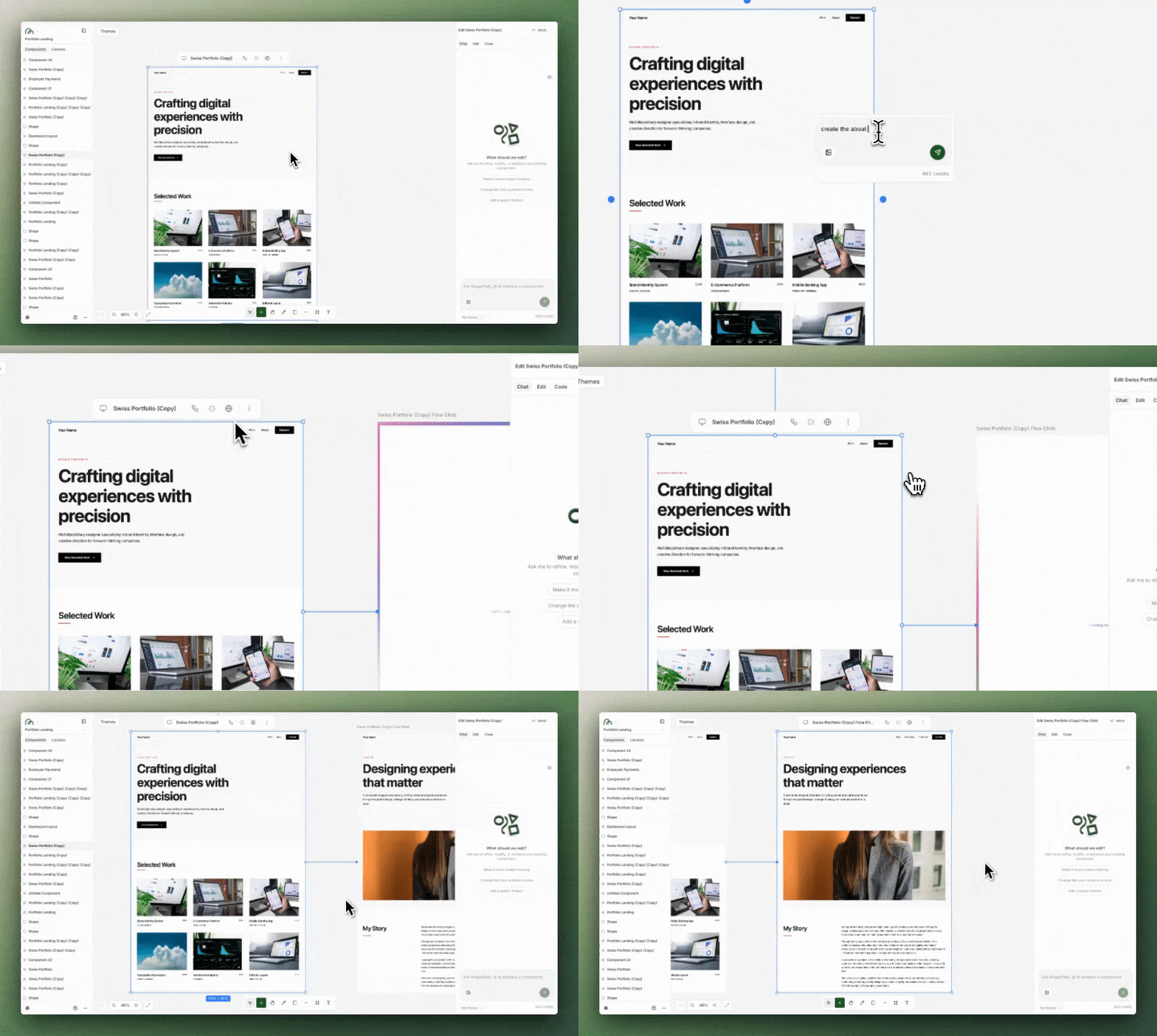
What are Flows?
Flows let you create connected series of screens and pages that represent user journeys, like onboarding sequences, checkout processes, multi-step forms, or complete application navigation flows.
Accessing Flows:
To create a flow, select any component on your canvas and click the "Flow" button in the frame toolbar. This will allow you to add connected steps in any direction.
The Power of Design Consistency
What makes Flows truly powerful is that each new connection automatically retains the design specifications, style, tone, and visual language of whatever you had before. This means you can:
- •Design one screen perfectly and use it as the starting point for your entire application
- •Create full end-to-end applications with consistent styling throughout
- •Build complex user journeys where every screen feels cohesive
- •Maintain brand consistency automatically as you expand your flow
Creating a Flow:
- Select a component to start from
- Click the "Flow" button in the frame toolbar
- Choose a direction for the next step (North, South, East, or West)
- Describe the next screen in your journey
- The AI will generate it with the same design style and tone
- Continue adding steps to build your complete application flow
Example use cases:
- • Multi-step onboarding sequences
- • E-commerce checkout flows
- • Complete SaaS application navigation
- • User authentication journeys (sign up → verification → dashboard)
- • Multi-page forms with progress tracking
Note: Code Export
Currently, each section of a flow is exported as a separate codebase. In the future, we're working to make flows export as a unified codebase with proper routing and navigation between screens, making it even easier to deploy complete applications.
Using /commands in chat
You can now create flows directly from the chat using /commands. Simply type /flow in the chat to build connected sequences of screens without ever leaving the conversation. Explore. Refine. Get to your vision faster.